
How to Create Your Own Custom Minecraft Skin
Overview
Minecraft is a game all about creativity, and one of the most fun ways to express yourself is through your custom skin. Whether you want to represent your favorite character, show off your personal style, or just create something unique, designing your own Minecraft skin lets you truly stand out. Here’s a step-by-step guide on how to make your very own custom Minecraft skin and bring your in-game character to life.
- Choose Your Skin Editor
The first step in creating your custom Minecraft skin is selecting a skin editor. There are several online tools available to help you design your skin, but some of the most popular options include:
Skindex (minecraftskins.com)
NovaSkin (novaskin.me)
MinecraftSkinEdit (available as a downloadable tool).
These platforms offer intuitive interfaces and a variety of tools, such as color pickers, brush tools, and easy layering, that simplify skin creation. Some also allow you to view your skin in a 3D model before applying it, which is a helpful feature to ensure everything looks right. - Decide on the Skin’s Theme
Before jumping into design, decide on the theme or style of your Minecraft skin. Will you go for a realistic look, a fantasy character, or something fun and quirky? You can design a skin that represents your favorite TV character or something entirely original. Whatever direction you choose, having a clear vision will help guide your design. - Start Designing
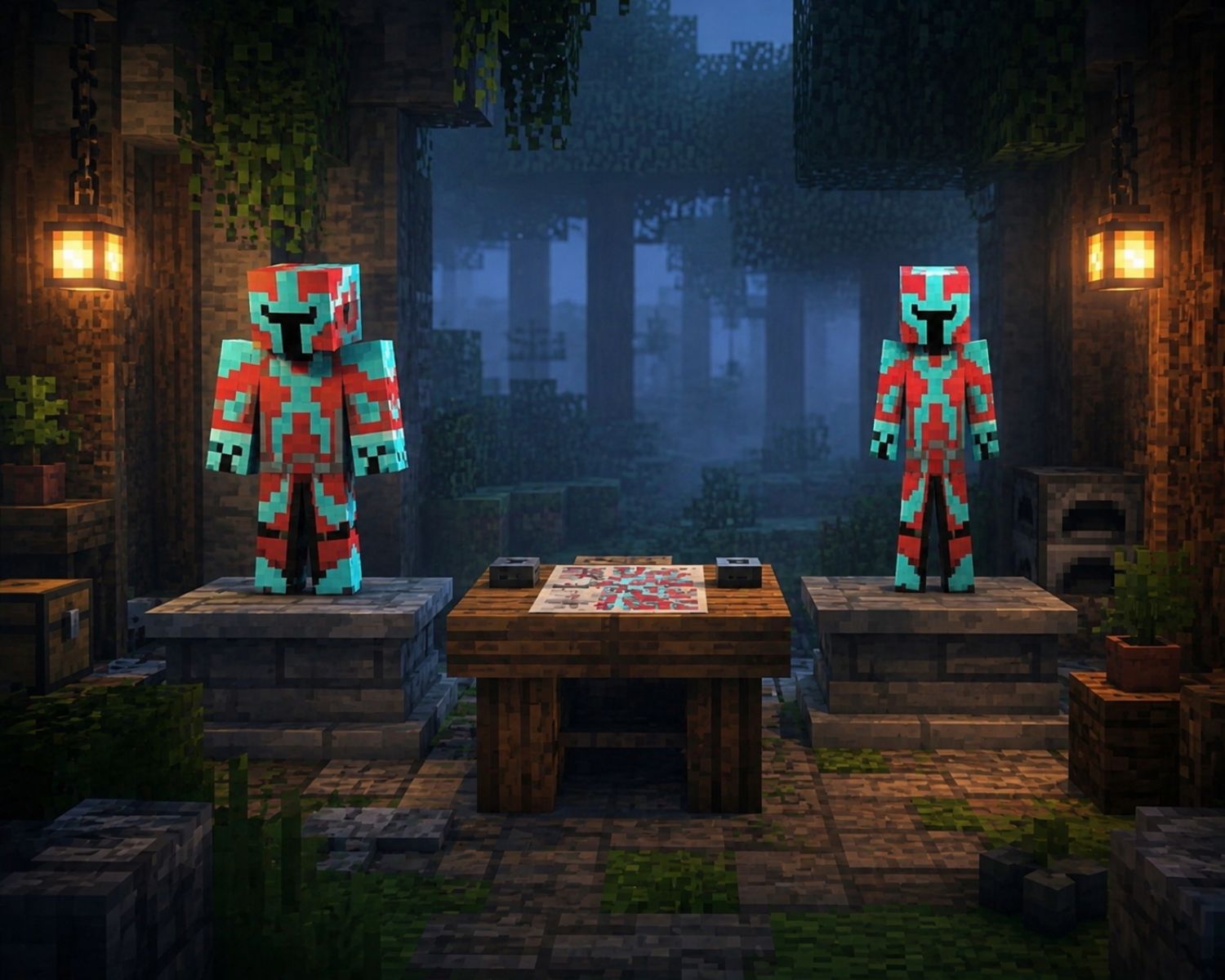
Once you’ve chosen your editor and theme, it’s time to start designing! Most skin editors work by providing a 2D grid that represents your character’s body. The skin is usually divided into front, back, and side views so that you can paint each section separately. Use the color palette to add details like clothing, hair, facial features, and accessories. Gradients and shading can add depth to your design, making it look more dynamic and lifelike. - Check Your Work in 3D
Most skin editors let you view your skin in 3D, which is essential for assessing the overall look of your design. Rotate the model to ensure all parts of your skin align correctly, and check that the proportions are accurate. This step helps avoid errors like mismatched clothing or uneven shading. - Download and Apply Your Skin
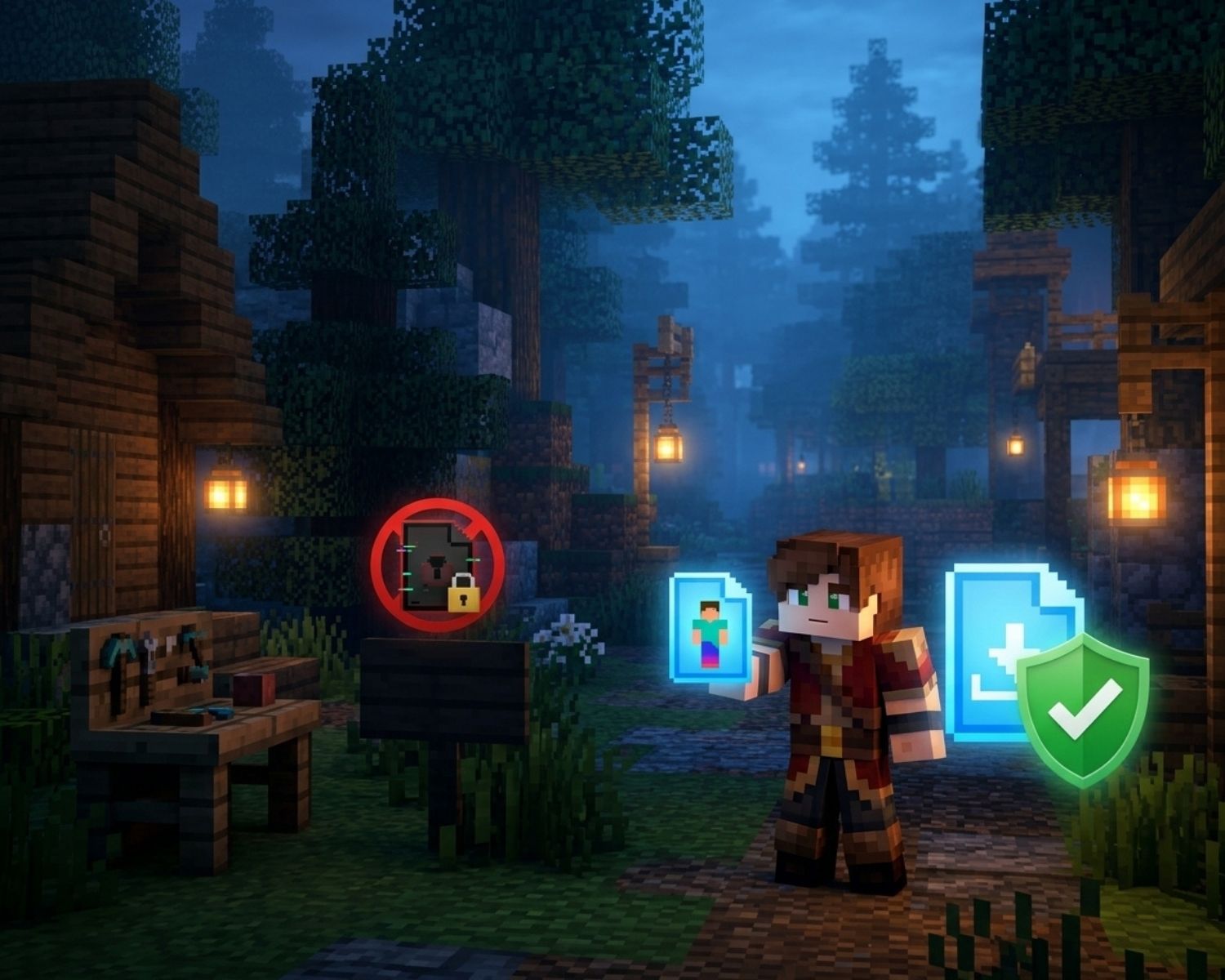
Once you’re satisfied with your design, save and download your skin as a .png file. To apply your new skin in Minecraft, log in to your Minecraft account and go to the profile settings. Click “Edit Character,” then upload your custom skin file. Once the skin is uploaded, you’re all set to play with your personalized character!
Conclusion
Creating your own Minecraft skin is a fun and rewarding experience that allows you to express your personality in the game. By choosing the right tools, planning your design, and taking the time to fine-tune the details, you can create a custom skin that’s truly unique. So, grab your creativity and start designing your perfect Minecraft character today!
#MinecraftSkins #CustomMinecraftSkin #MinecraftDesign #GamingCustomization #MinecraftCharacter #SkinEditor #GameArt #MinecraftCreativity #MinecraftFan #PersonalizedSkin