A Beginner’s Guide to Editing Minecraft Skins
Introduction
This beginner’s guide covers the basics of editing Minecraft skins, from selecting the right tools to uploading the final design, allowing players to personalize their gameplay experience.
Tools You Will Need
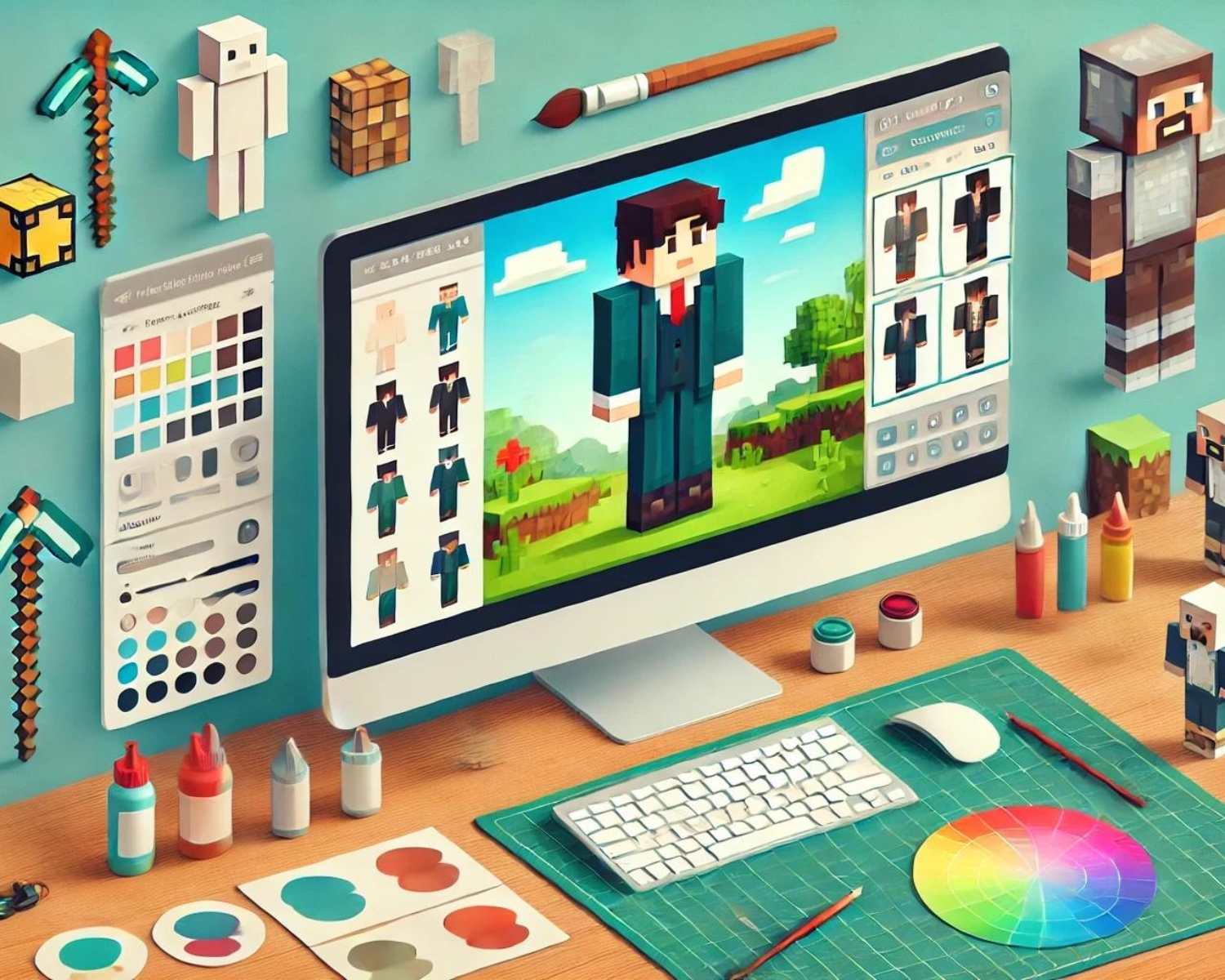
1. Skin Editor: Numerous online skin editors provide user-friendly interfaces for beginners. Minecraft skin is a popular choice because it offers pre-designed templates and intuitive design features.
2. Image Editing Software: For more detailed editing, you might prefer using an image editor like Photoshop or GIMP. These programs offer more advanced features but require a bit more skill to use effectively.
Step-by-Step Guide to Editing Your Minecraft Skin
Step 1: Choose a Base Skin
- Start Simple: Choose an existing skin that closely resembles what you want. This can be a generic skin or something a bit more detailed. You can find base skins on sites like MinecraftSkins.com.
Step 2: Modify the Base Skin
- Open Your Skin Editor: Upload the base skin to your chosen skin editor. Most editors will display the skin laid out flat, showing all parts of the body.
- Make Changes: Use the editor’s tools to change colors, add patterns, or edit details. This could involve something as simple as changing the color of a t-shirt or as detailed as redesigning the face.
Step 3: Save and Test Your Skin
- Save Your Work: Once you are happy with your edits, save the skin as a PNG file. Make sure to save it in a place where you can easily find it.
- Test It Out: Before you finalize everything, it’s a good idea to see how your skin looks in the game. You can upload your new skin to your Minecraft profile and enter the game to see it in action.
Tips for Successful Skin Editing
1. Pay Attention to Detail: Since Minecraft skins are small images, even minor changes can make a big difference. Pay attention to small details, especially on the face and hands.
2. Keep It Balanced: Make sure your skin looks good from all sides. Sometimes a design might look great from the front but not from the back.
3. Get Inspired: Look at popular skins created by others to get ideas about what works well and what doesn’t.
4. Practice Makes Perfect: Don’t be discouraged if your first few attempts aren’t perfect. Skin editing can take some practice to get it right.
Uploading Your Final Skin
Once you’re satisfied with your skin, you can upload it directly to your Minecraft profile on the Minecraft website. Log in, navigate to the profile page, and upload your skin file. The next time you log into the game, your character will be sporting your new design.
Conclusion
Creating and editing your Minecraft skins can be a fun and rewarding way to add a personal touch to your Minecraft experience. Whether you’re aiming for a simple change or a unique design, the process allows you to express your creativity in a game all about creation. So grab a tool, start editing, and make your Minecraft character truly your own!
#Minecraft #Gaming #MinecraftSkins #SkinEditing #CustomSkins #GamerDIY #CreativeGaming #MinecraftCommunity #GameDesign